Sync your matches with Google Calendar, Apple and Outlook
Turn on a personal link in your profile and your league matches, tournaments, americanos, bookings and classes show up in the calendar you already use. Here is how to set it up in each app, and why it is not instant.
Your padel week lives in Reservo, but the rest of your life lives in your calendar. When the two don’t talk, the usual happens: you agree to dinner on Thursday and forget you have a league match at 8 pm.
That is what Sync calendar is for. You turn on a personal link once, add it to Google Calendar, Apple Calendar or Outlook, and from then on your matches, bookings and classes show up next to everything else.
Screenshots are from the app in Spanish; the buttons are in the same places in English.
What gets synced
- League matches, including play-off matches.
- Tournament and americano matches.
- Your court bookings, both the ones you make and the ones you take part in.
- Your classes.
Only matches that already have a confirmed court and time appear. A league match that is still being arranged in the chat has no time to put in your calendar; as soon as it is scheduled, it shows up.
How to turn it on
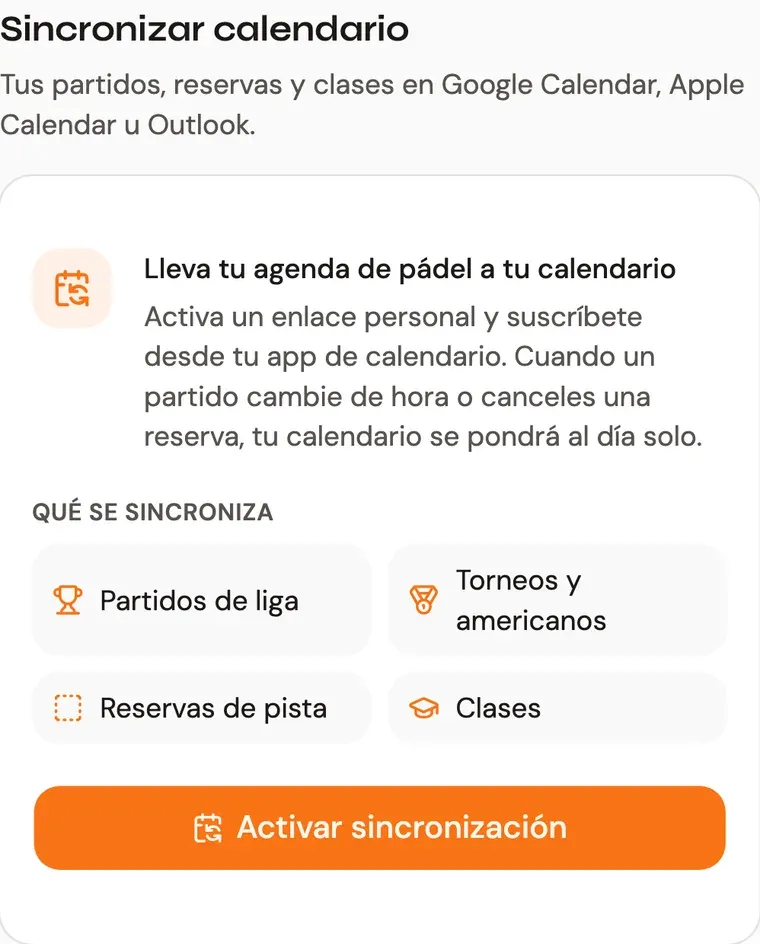
Go to Profile and scroll down to Sync calendar. Tap Turn on sync. You can also do it from Home: the Add to my calendar button, above your agenda, opens the same panel.
Once it is on you will see three buttons, one per calendar, and your personal link with a button to copy it.
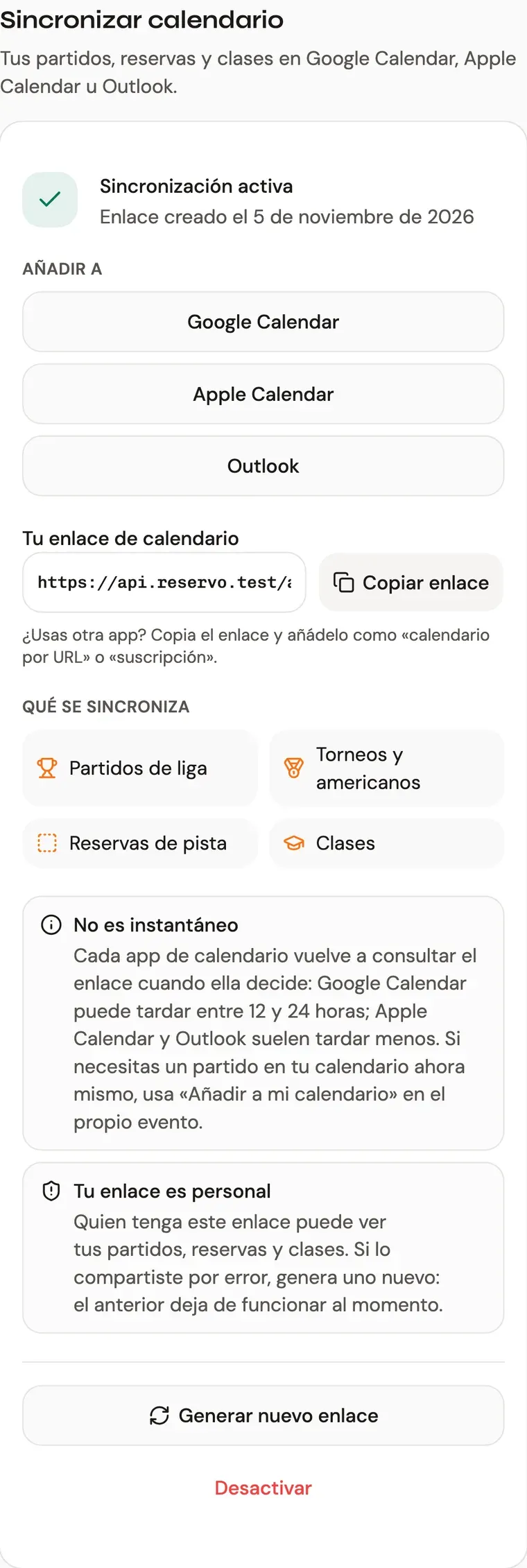
Google Calendar
- Tap Google Calendar. Google Calendar opens in the browser with your link already filled in.
- Confirm you want to add the calendar.
- Done: it appears in your list of calendars as “Reservo”.
If Google does not offer to add it (it sometimes happens on mobile), copy the link with Copy link, open Google Calendar on a computer and go to Other calendars → + → From URL. Paste the link and click Add calendar. Once added, it also shows up in the mobile app.
Apple Calendar (iPhone, iPad and Mac)
- Tap Apple Calendar.
- Your device will ask whether you want to subscribe to the calendar. Accept.
To do it by hand on an iPhone: Settings → Calendar → Accounts → Add Account → Other → Add Subscribed Calendar, and paste the link.
Outlook
- Tap Outlook. Outlook on the web opens with the option to subscribe from the web.
- Check the name (“Reservo”) and click Import or Subscribe.
Other apps
Any calendar app that can subscribe to a calendar by URL (iCal) works. Copy the link and add it as a “calendar from URL” or “subscription”.
How syncing works (and why it is not instant)
The link does not “push” anything to your calendar. It works the other way round: your calendar app asks Reservo, every so often, what is on your schedule, and updates whatever changed.
How often it asks is up to the app, not Reservo:
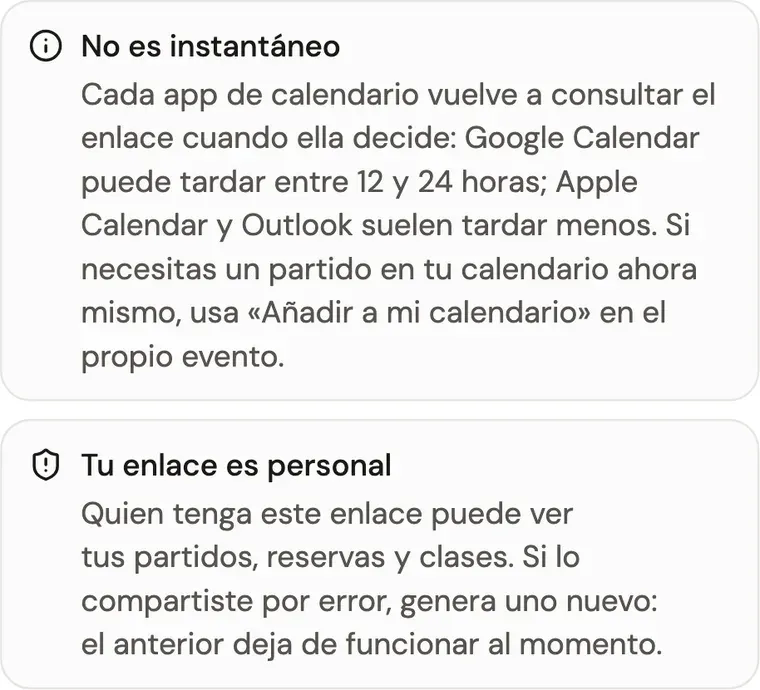
- Google Calendar can take 12 to 24 hours to check a subscribed calendar again. That is Google’s decision and cannot be sped up from outside.
- Apple Calendar and Outlook usually check much more often, typically within a few hours or less. On an iPhone you can choose the frequency in Settings → Calendar → Accounts → Fetch New Data.
So if a match is moved this afternoon, your calendar may not know yet. The Reservo app always has the latest information; your calendar gets it when it asks.
Need it right now? Add the event by hand
If you have just settled a match and want it in your calendar this minute, don’t wait for the sync: use Add to my calendar on the event itself.
- In Bookings, open a booking or class and tap Add to my calendar.
- In a competition, on the Mis partidos (my matches) tab, every scheduled match has the same button.
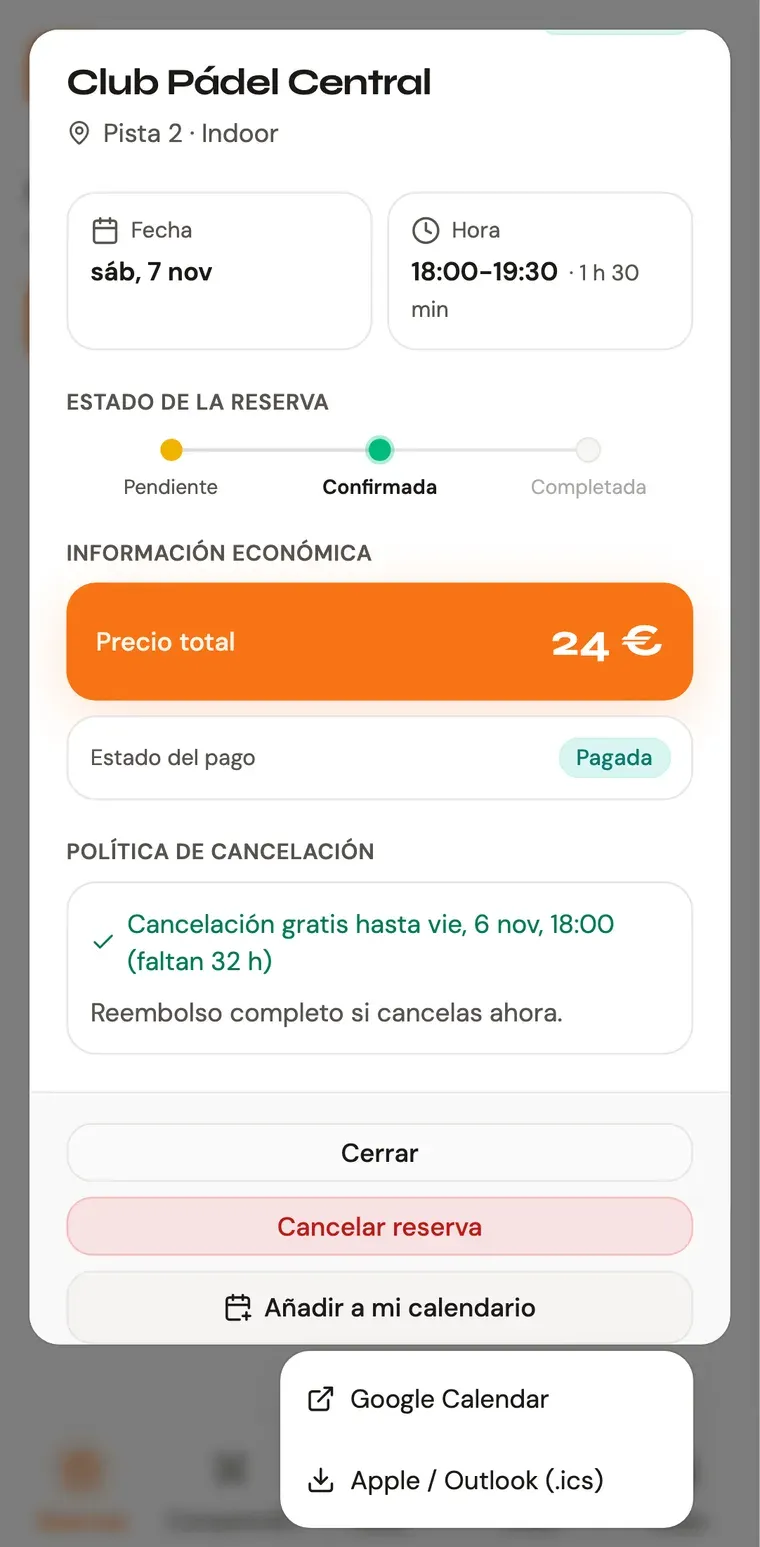
Choose Google Calendar to open the event already filled in, or Apple / Outlook (.ics) to download a file your calendar opens directly.
Keep in mind that an event added this way is a fixed copy: if the match is moved later, that copy does not move. Only the subscribed calendar updates itself.
Your link is personal
Anyone with your link can see your matches, bookings and classes. Reading it does not require signing in, because your calendar app does not sign in either.
If you shared it by mistake, tap Generate new link. The old one stops working immediately, everywhere it was added. You will then need to add the new one to your calendar again.
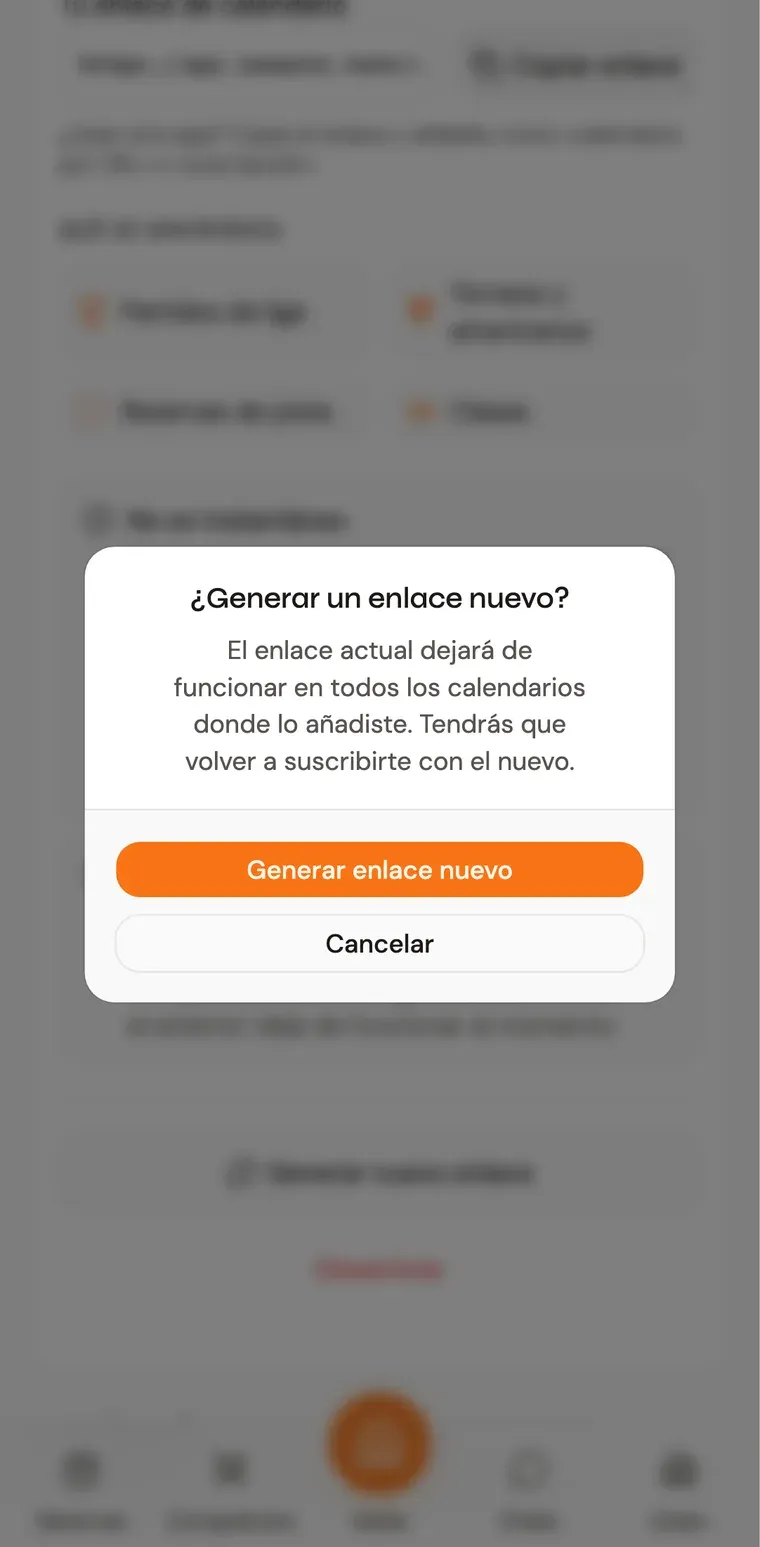
If you no longer want to sync, tap Turn off. The link stops working and your calendar gets no more updates. To remove it completely, also delete the subscription in your calendar app.
Frequently asked questions
If a match is moved, do I have to do anything? No. The event moves in your calendar the next time the app checks the link. It is not duplicated: it is the same event with the new time.
If I cancel a booking, does it disappear? It is marked as cancelled on the next update. Depending on your app, it disappears or is shown crossed out.
I have a league match with no date. Why isn’t it there? Because it does not have a court and time yet. As soon as it is scheduled, it goes into the calendar.
Do past matches show up? Yes, those from the last month, so you can check when you played. Looking ahead, the calendar covers the next twelve months.
Can I use the same link in several calendars? Yes. You can add it on your phone and in your work calendar, for example. If you generate a new one, you will need to change it in all of them.